Opening a new account should not feel like homework. Sky Exchange registration here runs through a short WhatsApp chat with the ID desk. You send the username you want and your mobile number, the desk replies with your first login details, and you choose your own password the first time you sign in. This guide walks through every step, explains what to expect, and covers the small problems people run into.
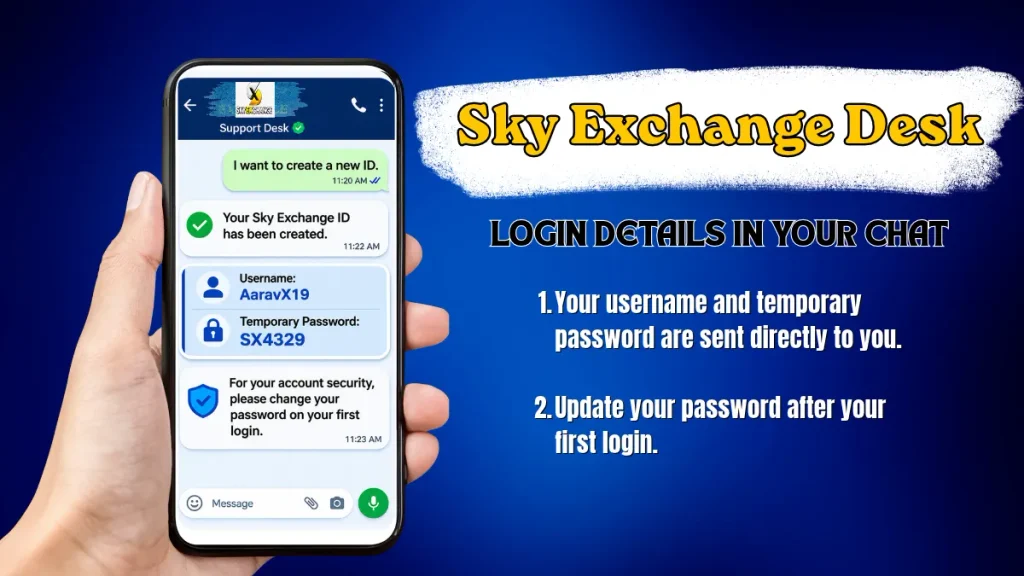
In short:
- Tap Sign Up on the login screen, or Register in the top bar.
- Message the ID desk your preferred username and mobile number.
- Save the username and temporary password the desk sends.
- Sign in once, then replace the temporary password with your own.
Before You Start Sky Exchange Registration
A little preparation saves time later. Have these ready:
- Your age and location in mind. The platform is for adults aged 18 and over, and online betting rules differ from state to state in India. Some states restrict or ban it, so check the law where you live first.
- WhatsApp on your phone. The whole registration chat happens there.
- A mobile number you plan to keep. The number you message from usually becomes the contact tied to the account.
- A username idea and a backup. The name you want may already be taken.
- The official link only. Start from skyexchangee.org, not from a group message or a stranger’s link.
Sky Exchange Registration Steps
There is no long sign-up form. These five steps cover everything from the first tap to your first login.
Step 1: Tap Sign Up or Register
On the login screen, scroll to the bottom. Below the action buttons you will see a short line asking whether you don’t have an account yet, and its last word, Sign Up, is your way in. The Register button in the top bar does the same job.
Both open the official ID desk link on WhatsApp: https://wlinks.io/kheloyaardigi. If you were sent a different link by someone else, do not use it.
Step 2: Send Your Username and Mobile Number
In the chat, send two things: the username you would like and your mobile number. That is all the desk needs to begin. If it needs anything more, it will ask you inside the same chat.
Step 3: Save the Login Details the Desk Sends
The desk replies with a username and a temporary password. If your first choice was already taken, you may receive a close variant, and the desk will tell you. Whatever arrives, type it exactly as written when you sign in.
Take a screenshot straight away. Chats move quickly, and the details can scroll out of sight.
Step 4: Sign In for the First Time
Enter your username, the temporary password, and the Validation digits. The digits change every time the page loads, so type the set that is showing when you press Login, not one you copied earlier.
On a phone, the boxes sit stacked on the login screen. On a desktop, they run along the header bar next to the Login and Demo buttons.
Step 5: Replace the Temporary Password
Before the lobby opens, a prompt asks you to set a password of your own. Choose something only you would know, and do not reuse your email or banking password. Registration is complete once this is done. If you ever want to change it again, look under Account.
The desk confirms the timing in the chat. We do not promise a fixed time, because it depends on how busy the desk is.
How to Choose a Username That Works
Your username goes into the login box every time, so it is worth a minute of thought.
- Keep it short and easy to type on a phone keypad.
- Avoid look-alike characters such as a capital I, a lowercase l, and a zero next to the letter O.
- Leave out personal details like your full name with birth year or your phone number.
- Have a backup ready. If the desk offers a variant, use it exactly as sent.
Registering on Mobile and on Desktop
Phones are the easier route. The desk chat already lives on WhatsApp, so you can send your details, receive the login, and sign in on the same handset without switching devices. After that you have two options: open the site in your mobile browser, or tap Download .apk on the login screen and sign in through the app. You can read more on our app page.
Once inside, a bar along the bottom shows Games, Sports, In-Play, Home, Multi Markets and Account. Account is where you change your password later.
On a desktop the three login fields sit in the header, but your credentials are the same. An account registered on a phone works on a laptop with nothing extra to do. For sign-in help, see our login page.
Common Sky Exchange Registration Problems and Fixes
The Validation Code Is Rejected
The digits refresh whenever the page reloads. Type whatever is showing at the moment you press Login.
The Temporary Password Fails
Check for a space at the end if you pasted it, and check capital letters. If it still fails, ask the desk to issue it again in the chat.
You Forgot Your New Password
Because your account was created in the desk chat, you can ask the desk to help there. The Forgot password? option on the sign-in screen is meant for accounts created another way.
The Site Will Not Open
Some networks block betting sites. If the address does not load, ask the desk for the currently working one. Your username and balance carry over to it.
A Verification Email Is Mentioned
For some accounts, an email confirmation may appear. The sign-in screen has a Resend Verification email? link that requests another copy.
You Are Locked Out After Travelling
Frequent changes of location, or the use of an IP-masking app, can lead to restrictions on an account. If you registered in one city and signed in from another soon after, tell the desk before doing anything else. The details are in our terms and conditions.
Try the Demo Before You Register
Not sure yet? Press Demo on the official sign-in screen. The lobby opens with practice credit, and you do not need a username. Use it to find your way around: open In-Play, look at how back and lay prices appear, and explore the Settings drawer.
Demo credit is only for practice. It does not move into a registered account later.
Keeping Your New Account Safe
- Never share your password, verification codes or Validation digits with anyone.
- The desk issues the temporary password only. The password you set afterwards is yours alone.
- If the desk asks for a document, share it only inside the official chat, and nowhere else.
- Be careful with lookalike sites and anyone offering an “ID for sale” in groups or comments.
- Read the privacy policy and terms before you add money.
Need a hand? You can reach us on our contact page.
Responsible Gaming and Legal Notes
This guide explains a process. It is not encouragement to bet. Betting is for adults aged 18 and over, and it is not legal everywhere in India, so check the rules for your own state. Set a fixed budget before you play, use only money you can afford to lose, and stop if it stops being fun. Our Responsible Gaming page has more guidance.
Sky Exchange Registration FAQs
How do I register on Sky Exchange?
Tap Sign Up on the login screen or Register in the top bar, send your preferred username and mobile number to the ID desk on WhatsApp, then sign in with the details you receive and set your own password.
What details does Sky Exchange registration need?
A username you would like and a mobile number. If the desk needs to verify you further, it will say so inside the chat.
How long does Sky Exchange registration take?
There is no fixed time. The ID desk confirms your details in the chat, so timing depends on how busy it is.
Can I register from my phone?
Yes. The chat runs on WhatsApp, so you can send your details, receive the login and sign in on the same phone, using the mobile browser or the app.
What if my chosen username is taken?
The desk may issue a close variant and tell you. Use exactly the username it sends.
Should I try the demo before registering?
You can. Demo login opens the lobby with practice credit so you can learn the screens first. Demo credit does not carry over to a registered account.
Is it safe to share my password with the desk?
No. Never share your password or verification codes with anyone. The desk only issues the temporary password, and the one you set afterwards is yours alone.
Ready to Begin?
Start from the official Sky Exchange ID page, tap Sign Up, and follow the five steps above. Want to know more before you start? Read our Sky Exchange cricket guide or the payments page.